Hello again,
this time it will be all about the player movement. I wanted to create a 3D-ish platformer so I knew I had to get into tutorials and explanations of how to achieve something like this. Therefore I went to YouTube and looked for a tutorial that would fit my needs. The world-building had to wait for a second cause the character would be moving only in one direction from left to right on the screen one of the main features.
The Script
In the tutorial of roundbeargames he creates two scripts. One for the keyboard input and another for the virtual input. There is also the concept of a singleton which I haven’t used before. It creates a single instance. In this case, we want to create a private object. So it seems that it might only be this one object.
So there are basically two scripts for this movement. First there is the virtual input manager as the tutorial explains. Something that manages the input of the devices I think.
VirtualInput.cs
    public class VirtualInputManager : MonoBehaviour
    {
        // this makes it a single object
        public static VirtualInputManager Instance = null;

        // This is a private single instance and the stuff inside can only be accessed inside of the class
        private void Awake()
        {
            if (Instance == null)
            {
                Instance = this;
            }
            else if (Instance != this)
            {
                Destroy(this.gameObject);
            }
        }
        // two variables as on/off or bool variable that take only 1 or 0 to define if the input is left or right
        public bool MoveRight;
        public bool MoveLeft;
    }


}
This code basically makes variables that can be checked at the moment. Though about that I am not sure neither.
The second script is the KeyBoard Input which basically checks if a certain key on the keyboard has been pressed. The code activates the virtualinputmanager and sets one of the variables true.
 // this is the code for the keyboard input - so it can be controlled by the keyboard
    public class KeyboardInput : MonoBehaviour
    {
        // Start is called before the first frame update
        void Start()
        {
        }

        // Update is called once per frame
        void Update()
        {
            // Move Right
            if(Input.GetKey(KeyCode.D))
            {
                // references the code from the input manager
                VirtualInputManager.Instance.MoveRight = true;
            } else
            {
                VirtualInputManager.Instance.MoveRight = false;
            }

            // Move Left
            if (Input.GetKey(KeyCode.A))
            {
                // references the code from the input manager
                VirtualInputManager.Instance.MoveLeft = true;
            }
            else
            {
                VirtualInputManager.Instance.MoveLeft = false;
            }
        }
    }
A third script then moves the object with all the attached physics. In this case here it will be only moving left and right.
Here called TestingCube like in the tutorial cause it is quite basic in its behaviour:
    public class TestingCube : MonoBehaviour
    {
        void Update()
        {
            // if the move right value equals true the game object will be moved forward
            if (VirtualInputManager.Instance.MoveRight)
            {
                // f here stands for float value
                this.gameObject.transform.Translate(Vector3.forward * 10f * Time.deltaTime);
            }

            if (VirtualInputManager.Instance.MoveLeft)
            {
                this.gameObject.transform.Translate(-Vector3.forward * 10f * Time.deltaTime);
            }
        }
    }
}
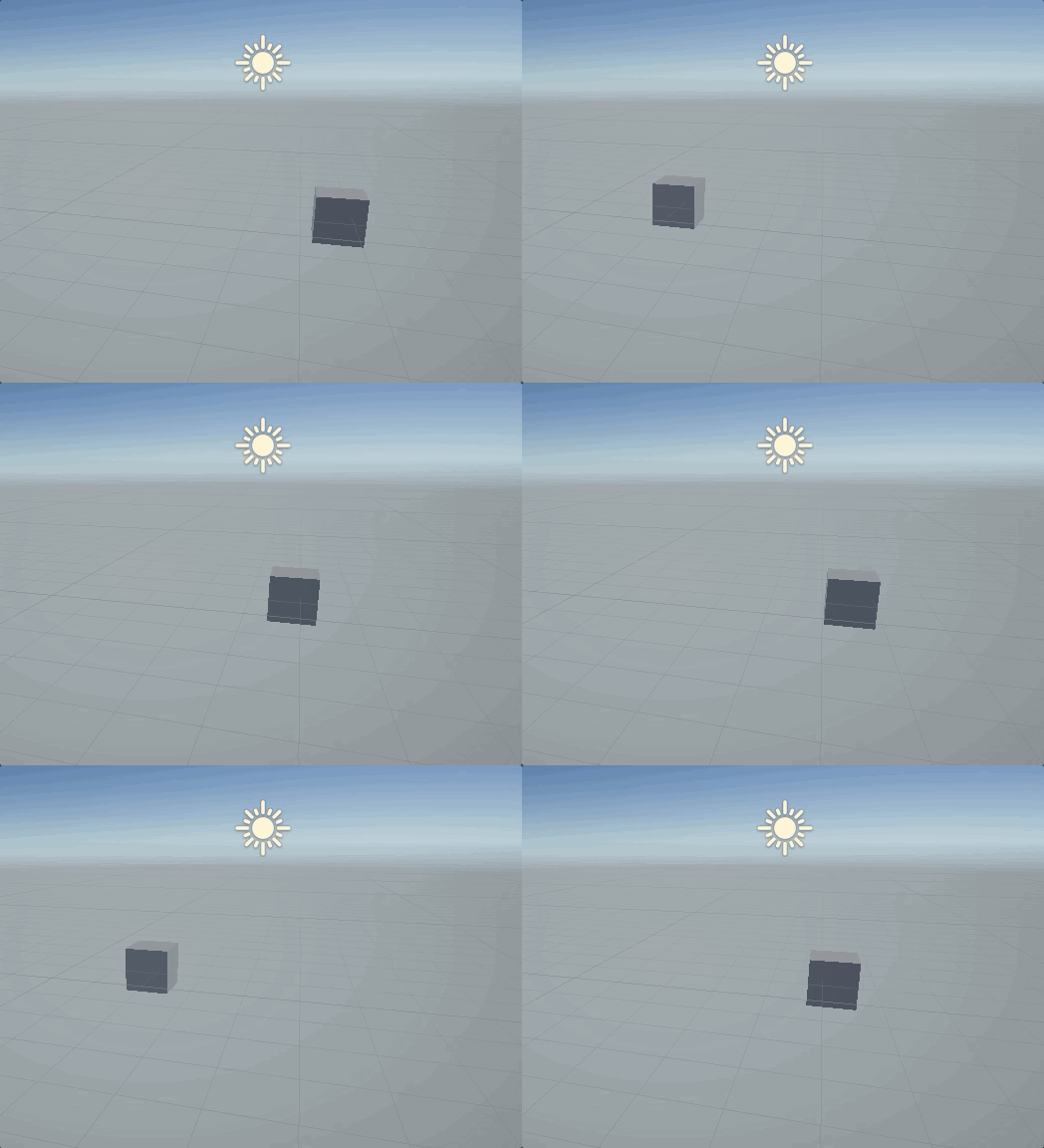
Until now the program just looks like this:
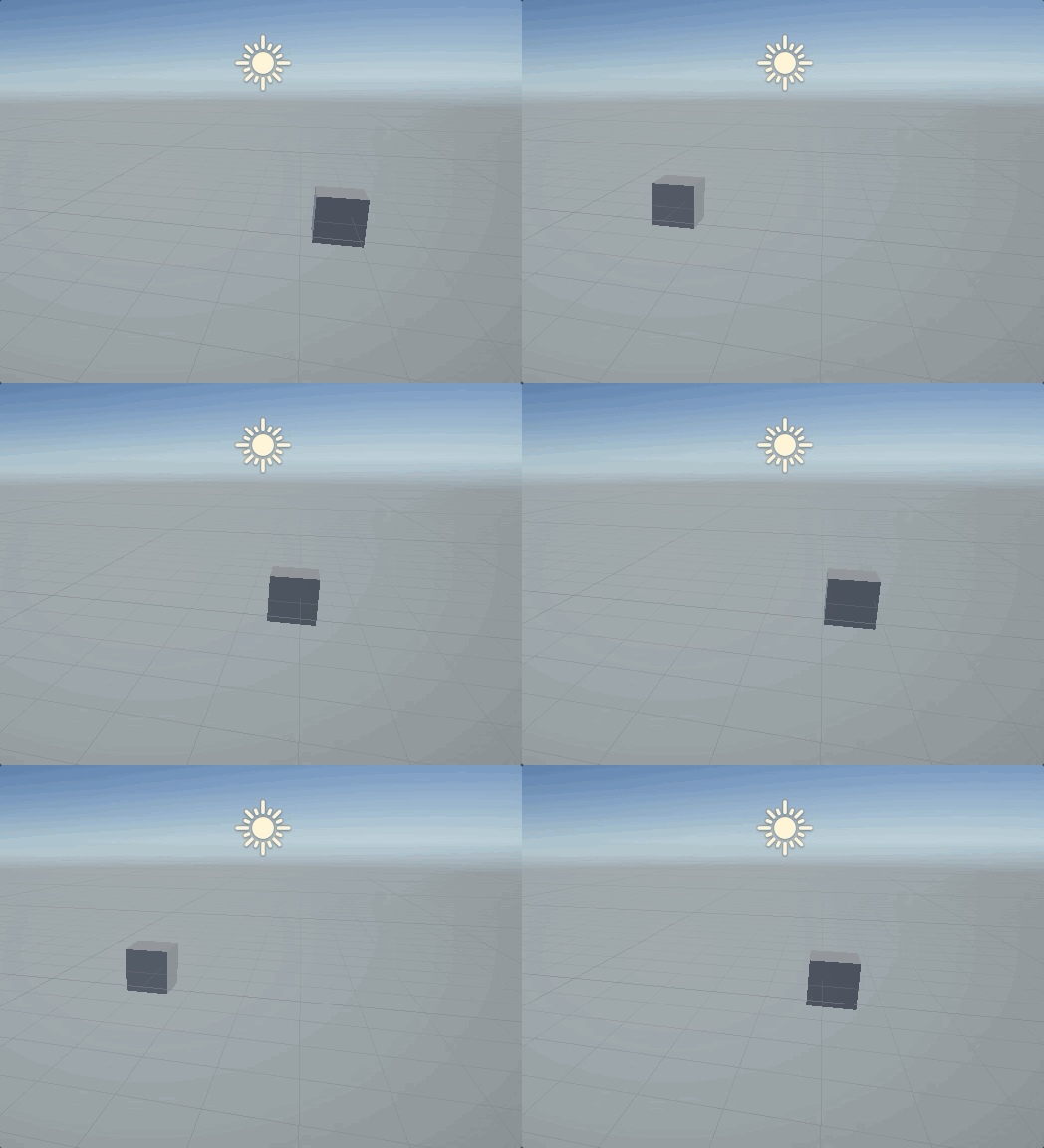
For the next Development Session I want to focus on the world or further develop the player movement, add a character asset to make it visually more interesting. Therefore loading assets from the asset store and embed it into the game.
Until next time 🙂